Install Grayson TimeSeries
Grayson runs inside Microsoft Teams. Follow the guide below to add the Grayson TimeSeries Agent to your Office 365 account.
*Most organizations allow individuals to add agents by themselves because all agents on the Microsoft Marketplace have been certified by Microsoft. If you are unable to install Grayson TimeSeries Agent, or are looking for custom integrations with your data historian, please contact us.
You can add Grayson TimeSeries directly from theMicrosoft Marketplace.
Add Grayson TimeSeries to Teams
- 1
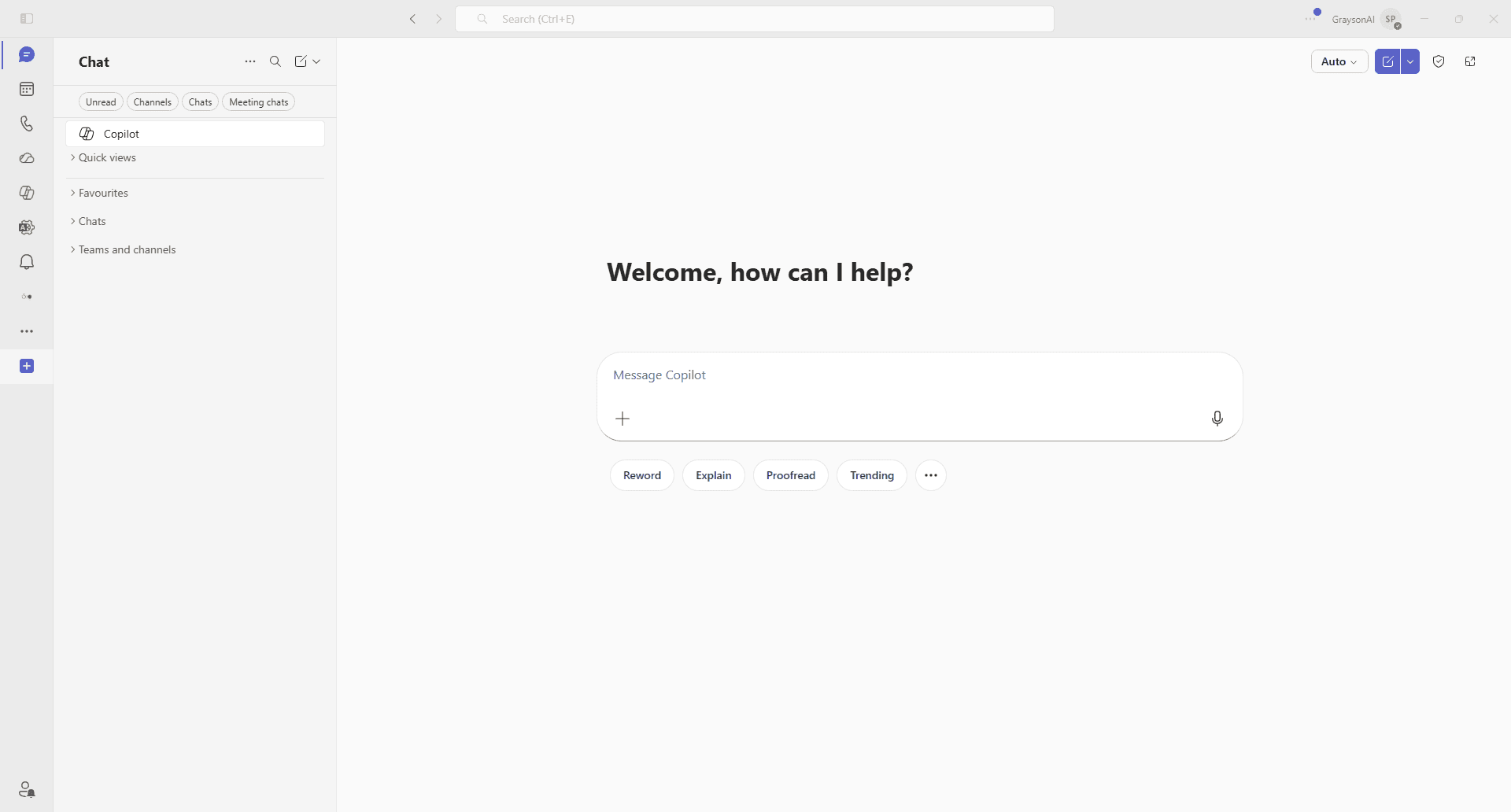
In Microsoft Teams, open Copilot and click the + button on the left sidebar.
- 2
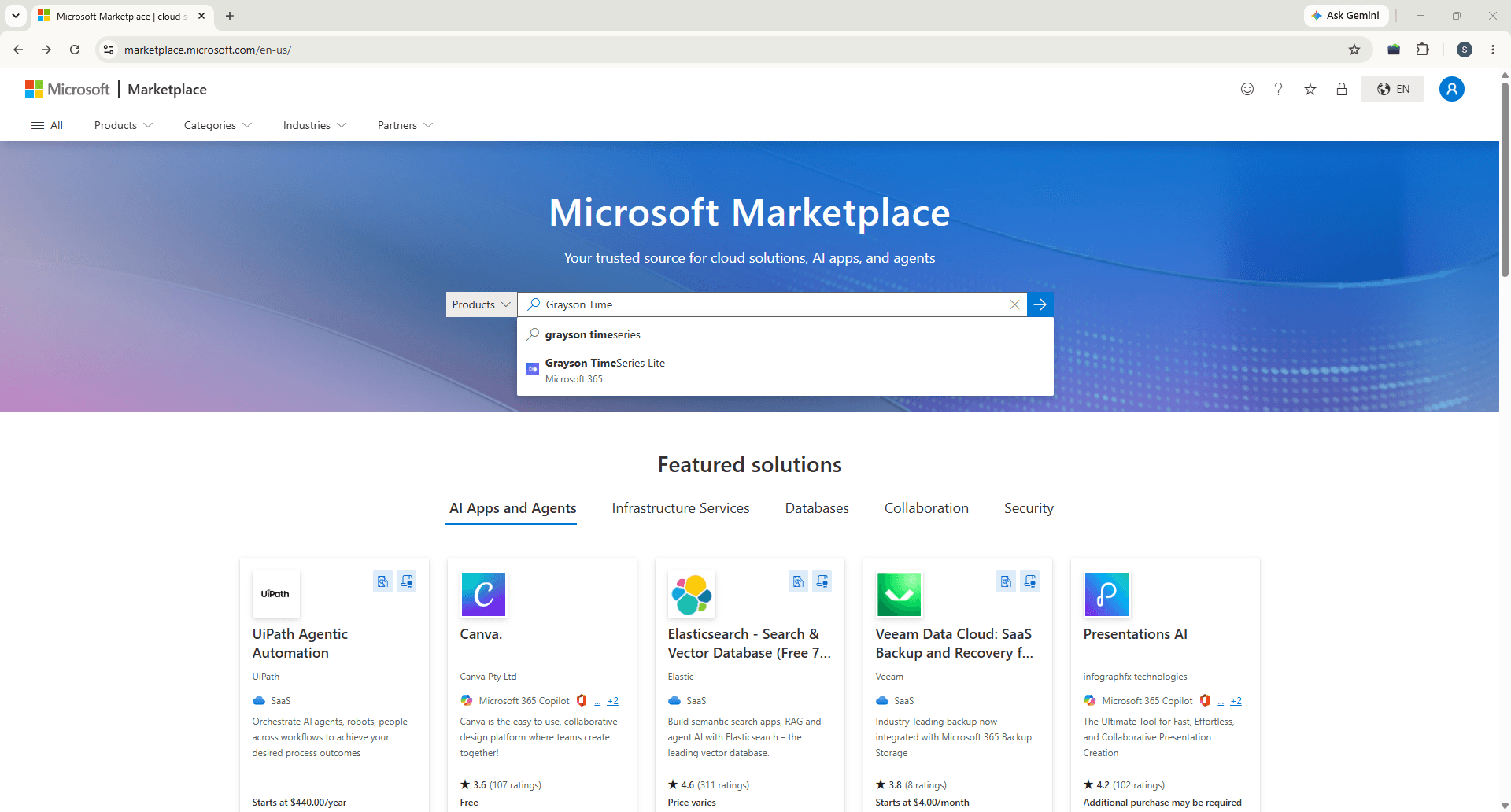
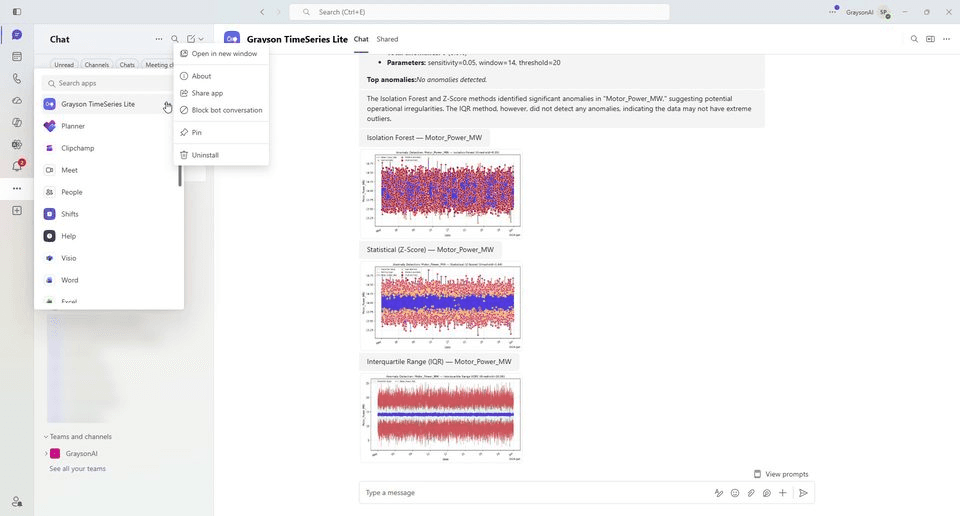
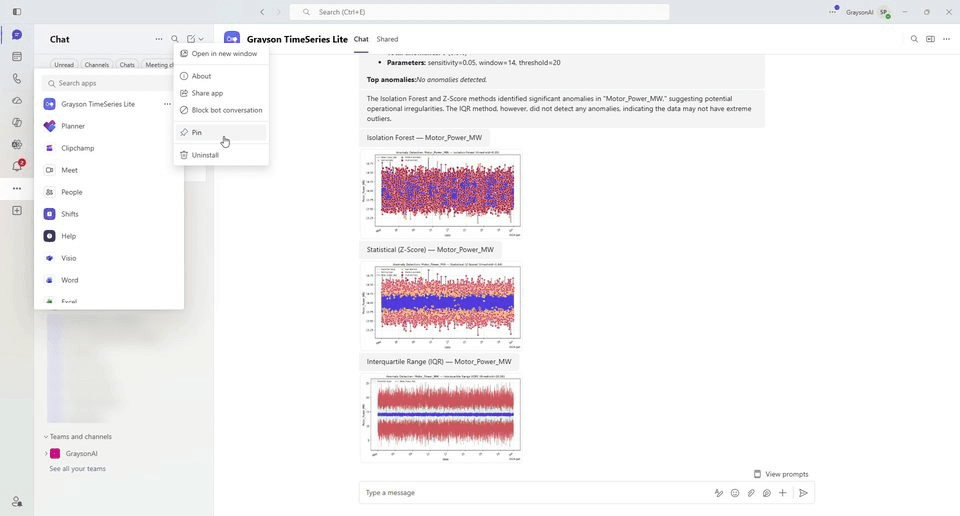
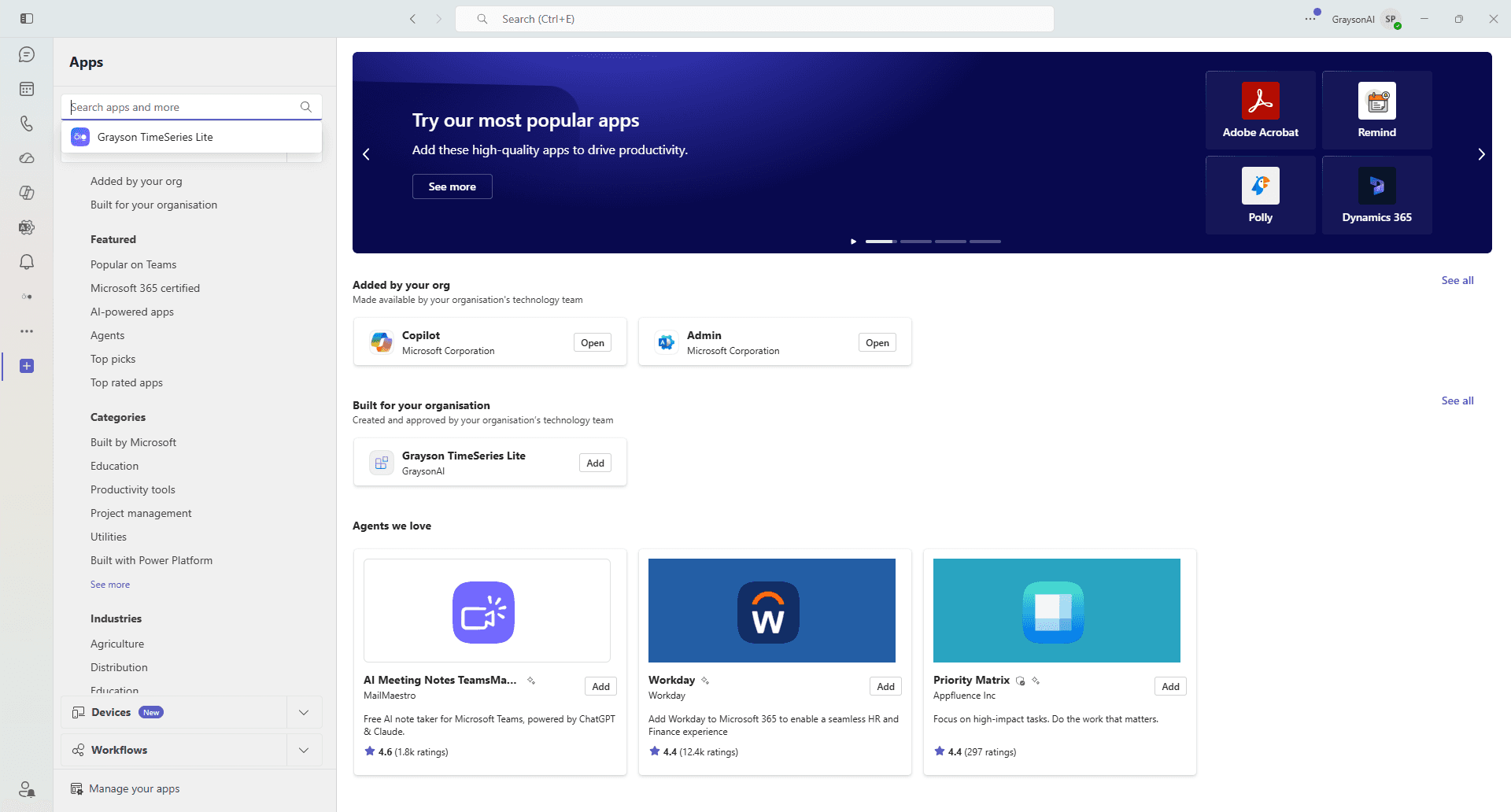
Open Apps and search for Grayson TimeSeries Lite.
- 3
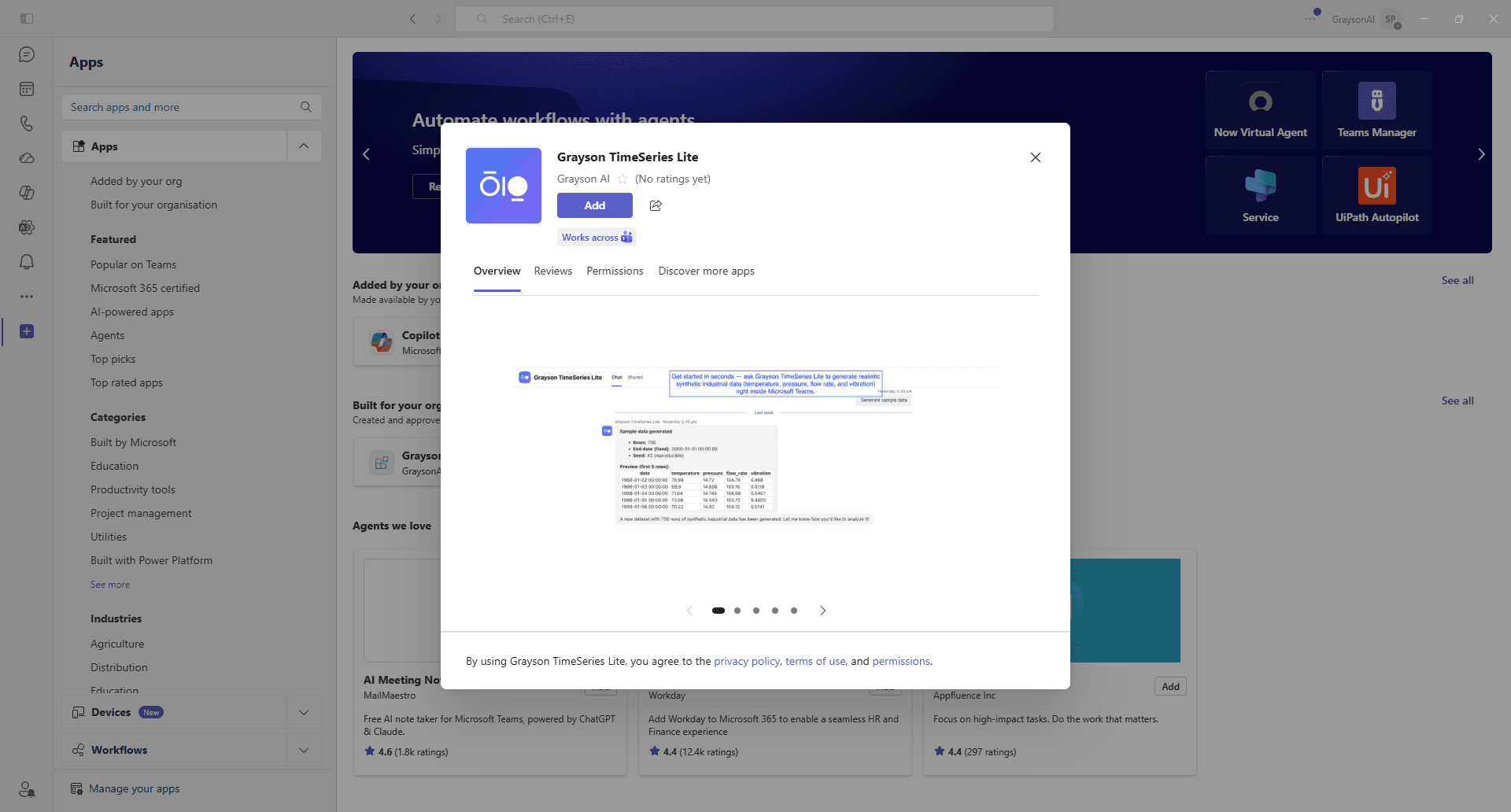
Open the Grayson listing and click Add.
- 4
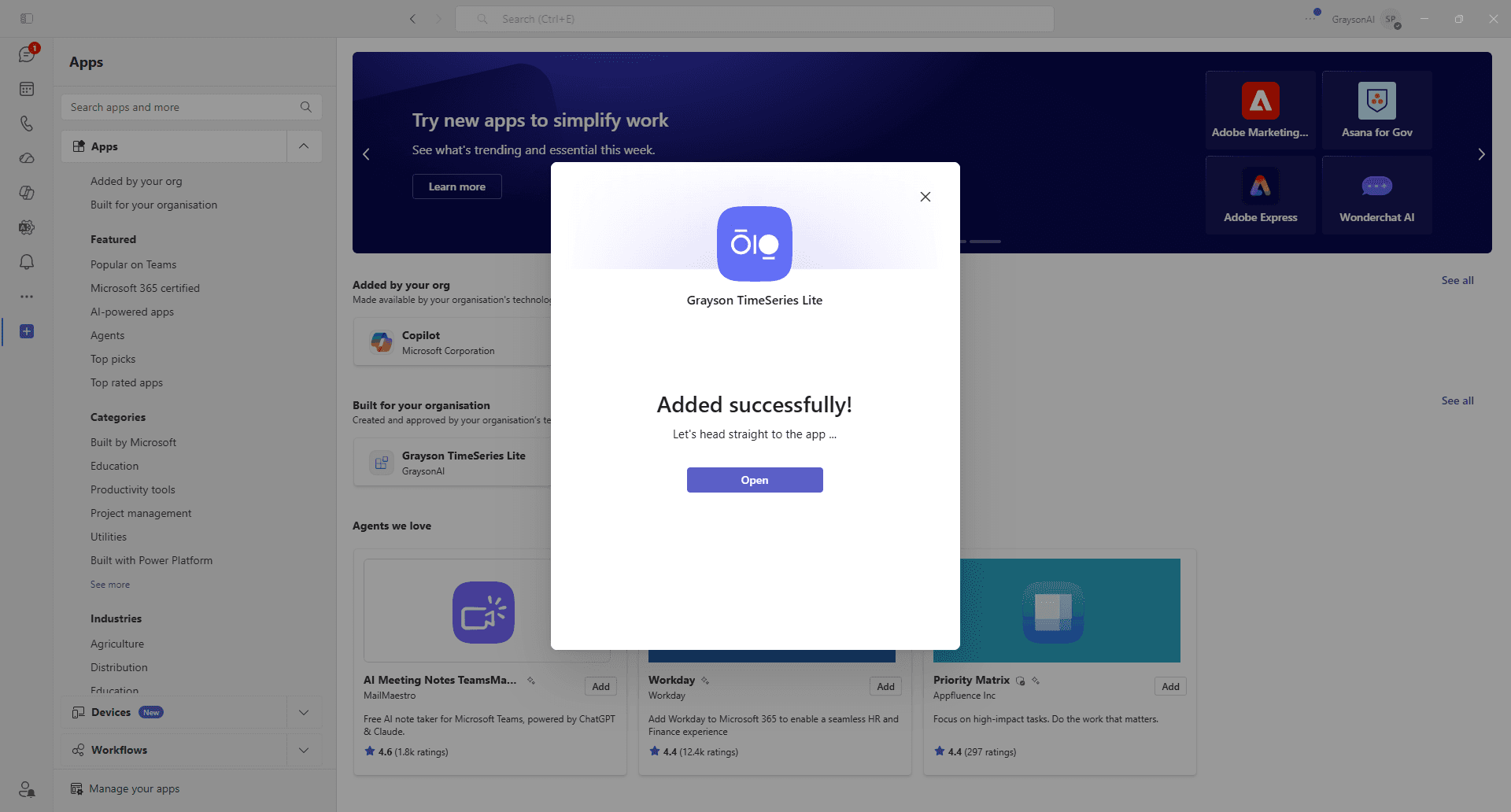
When you see Added successfully!, click Open.
- 5
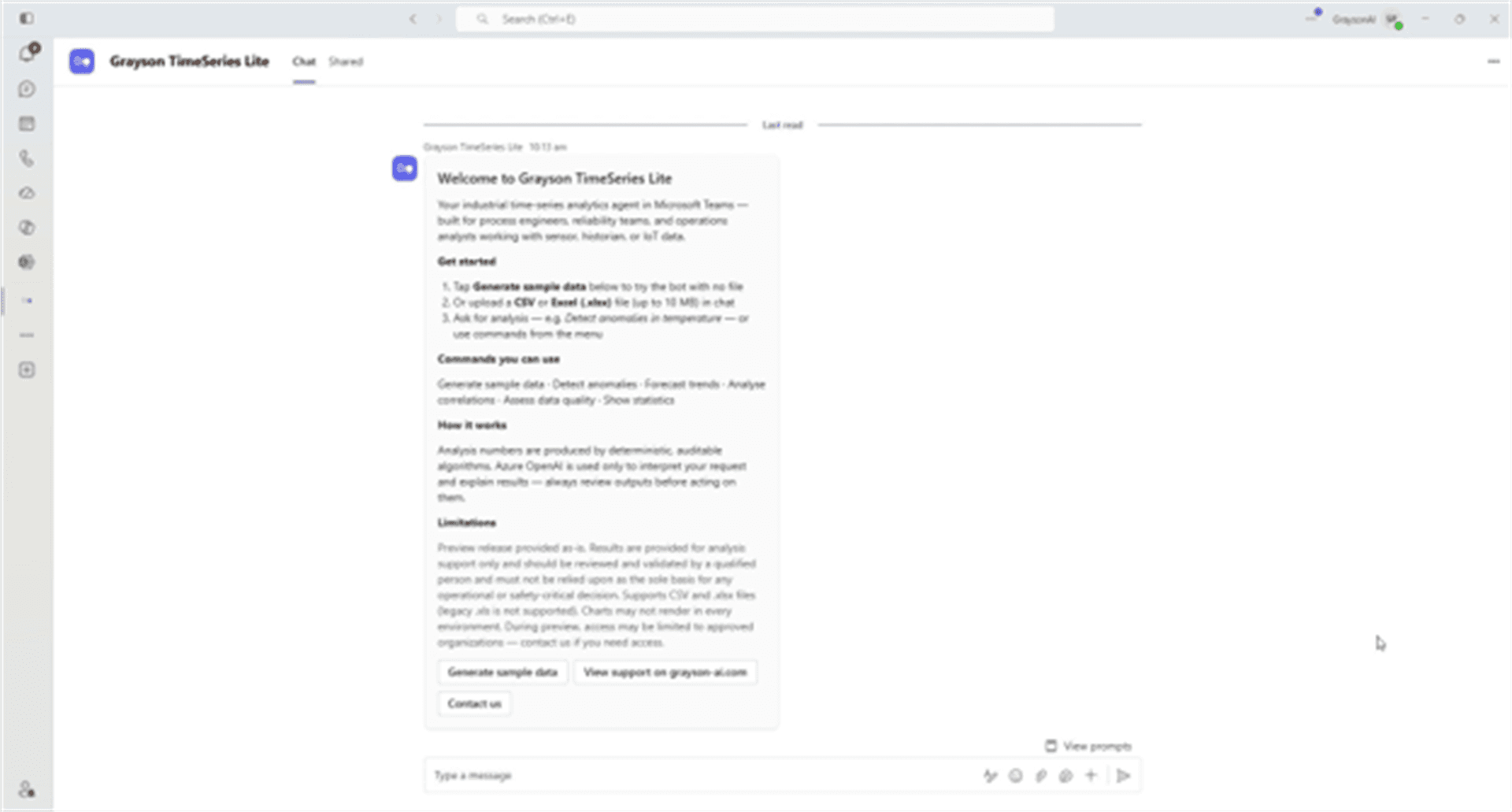
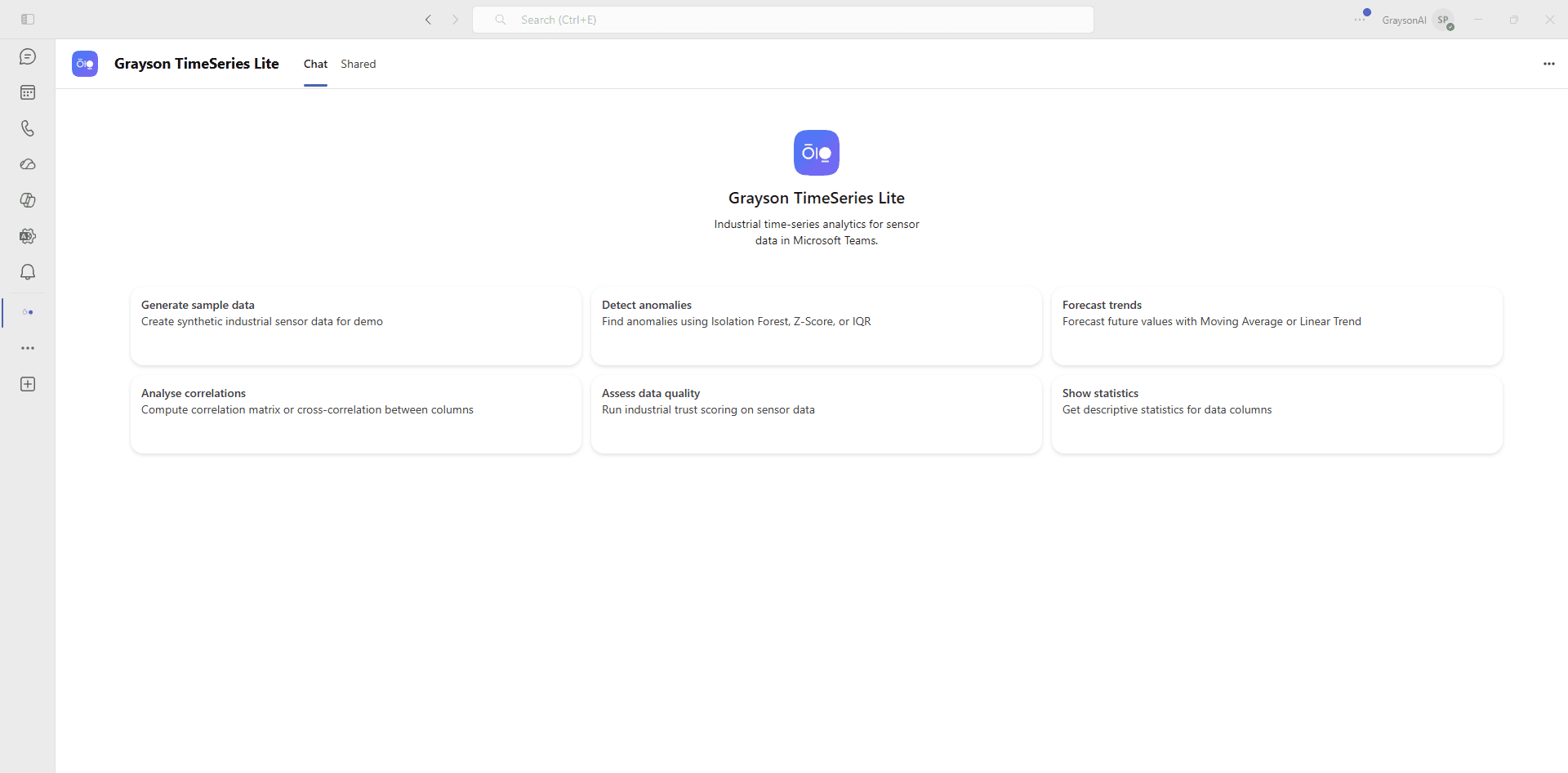
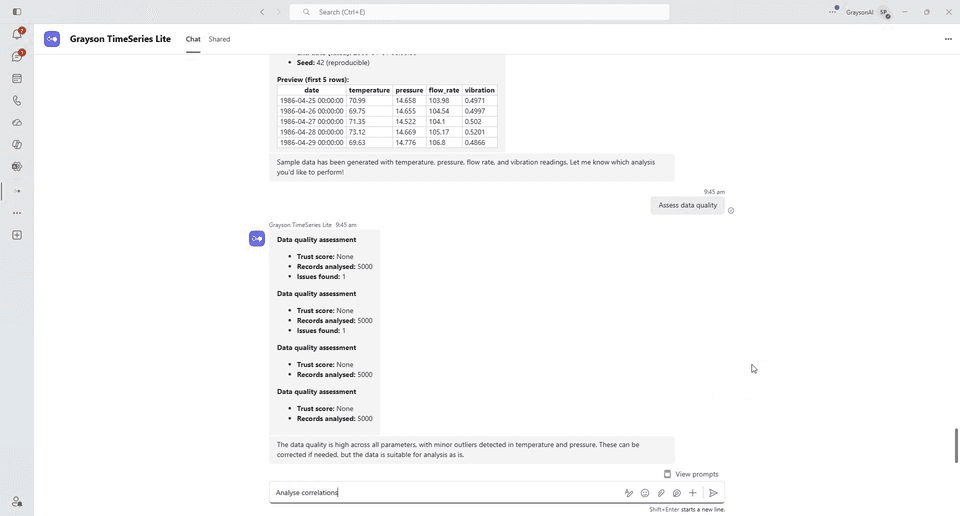
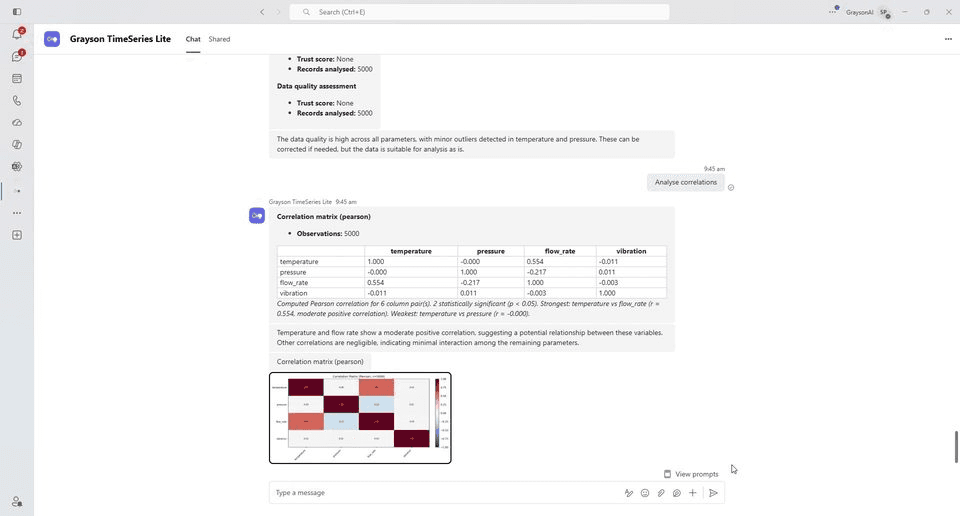
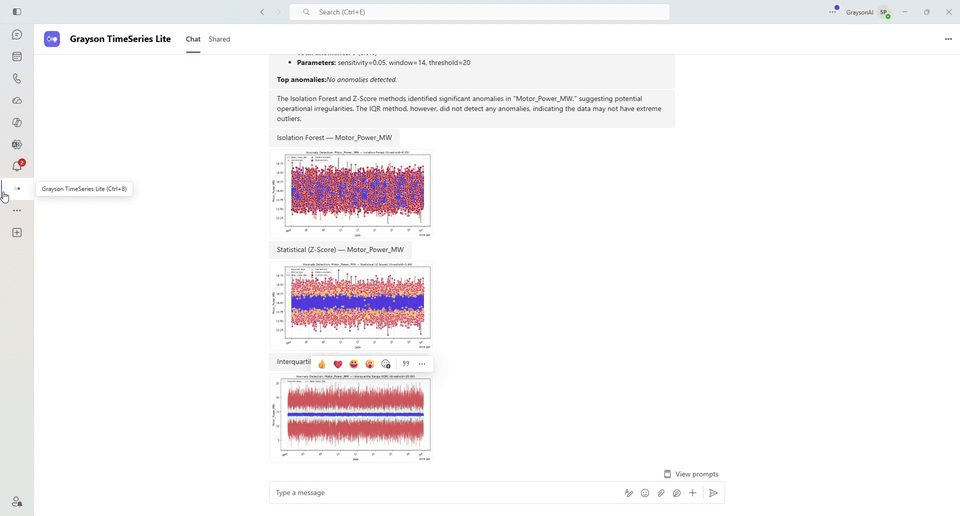
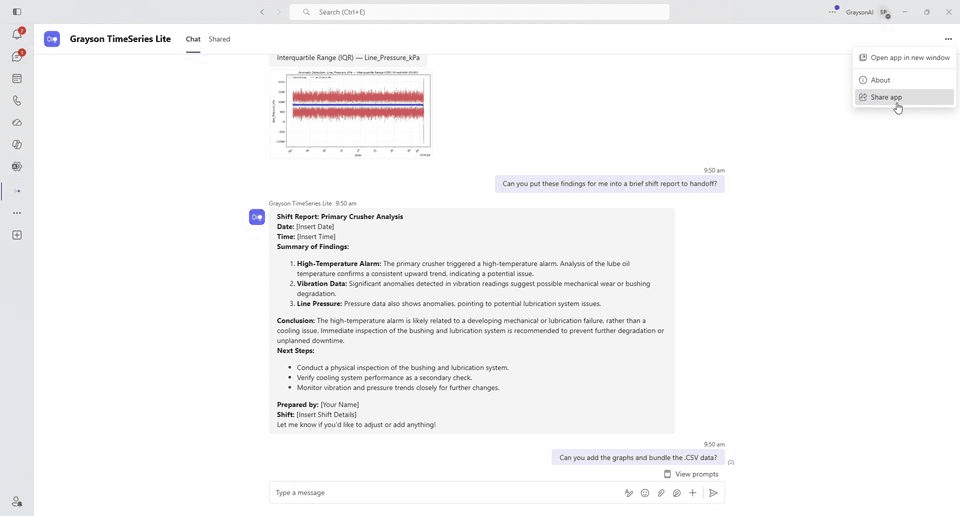
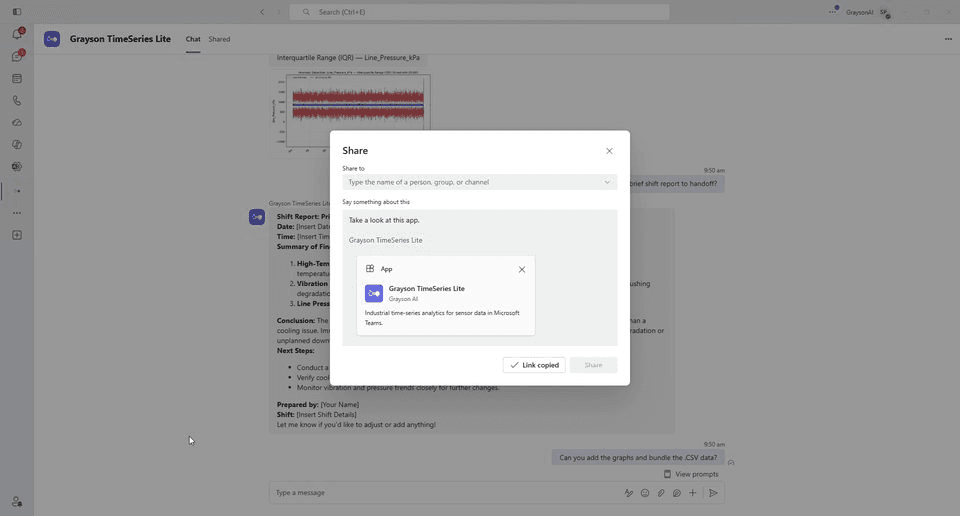
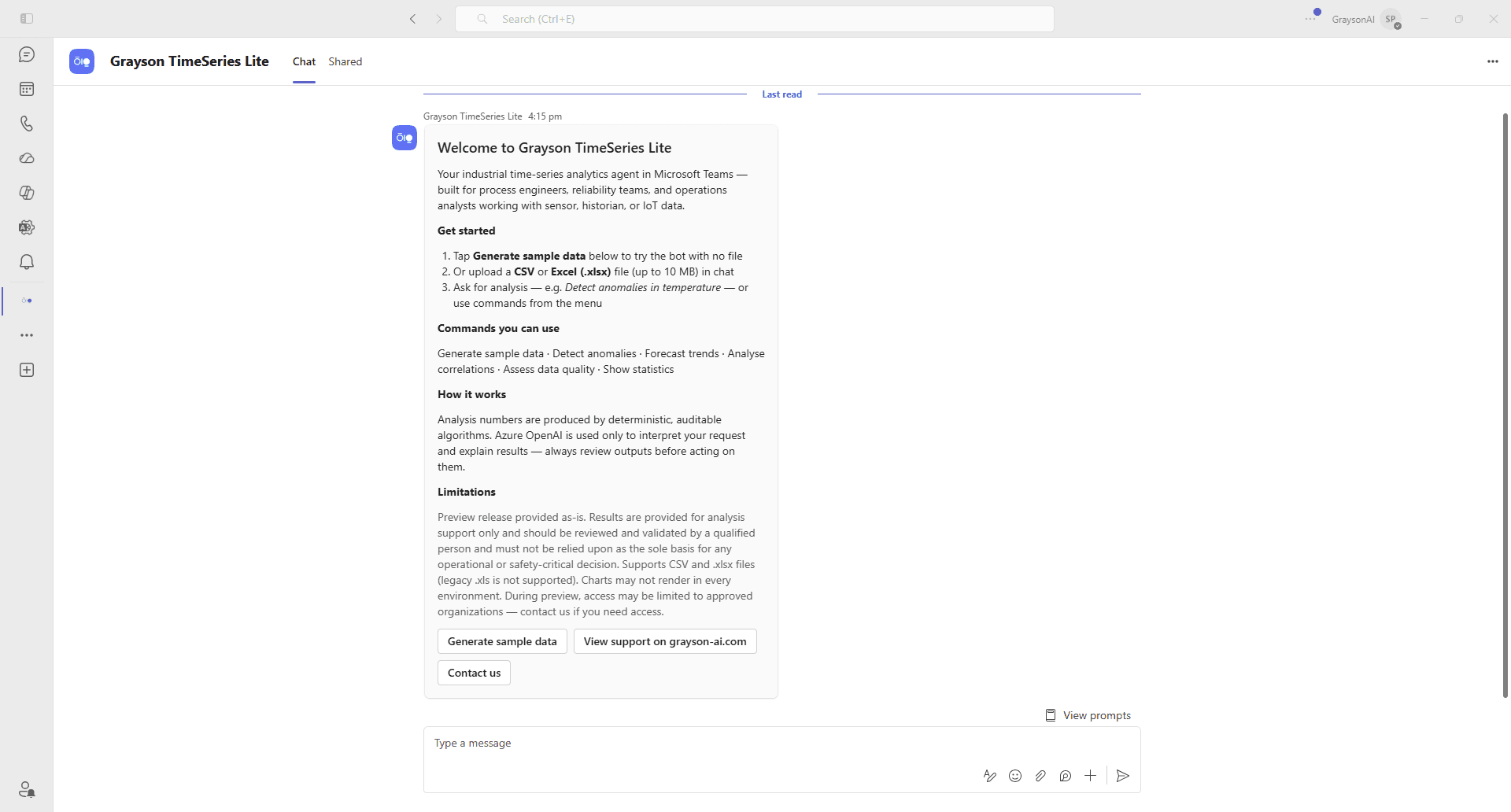
Grayson TimeSeries Lite opens in your chat—you're ready to go.
- 1
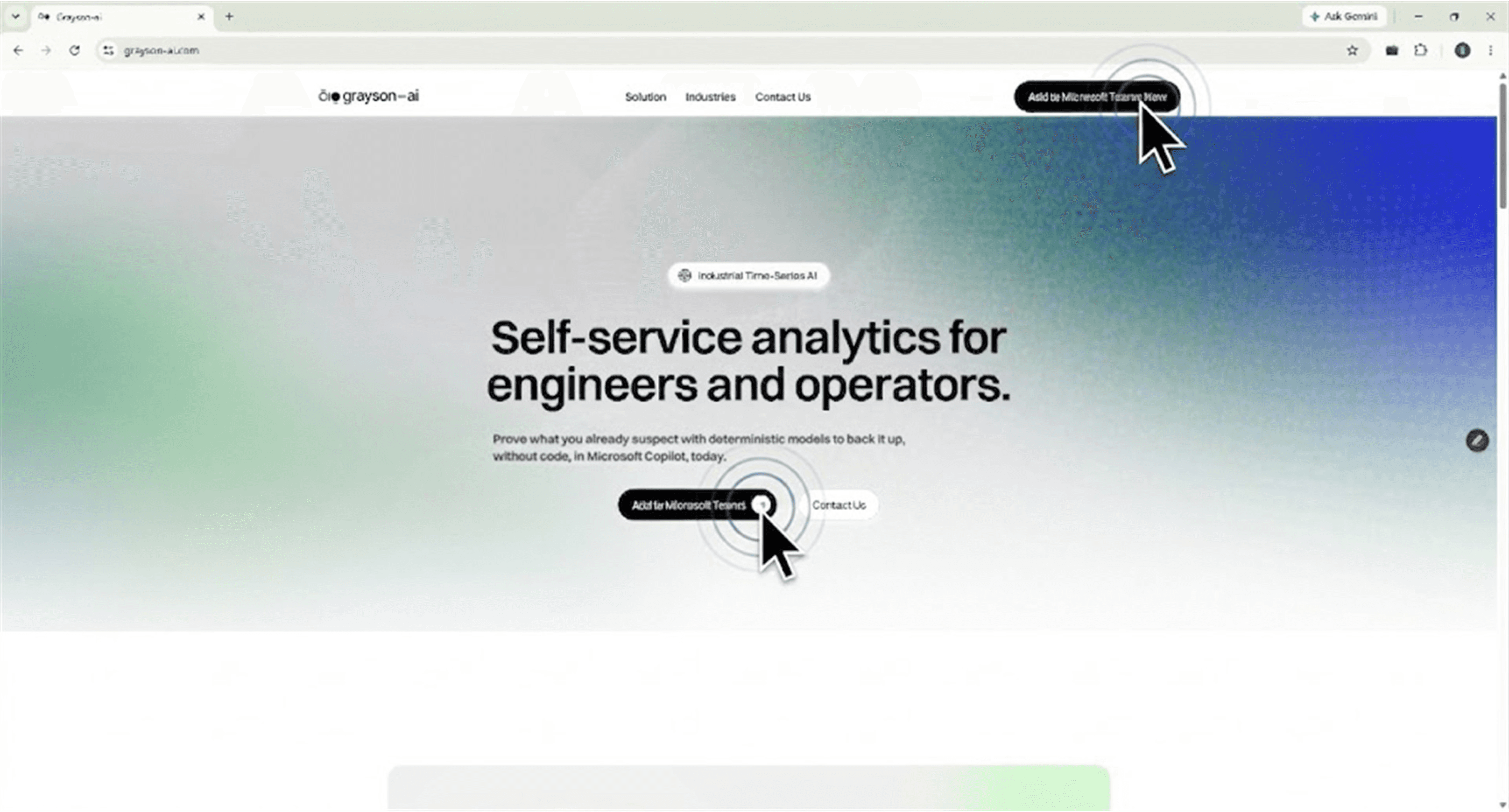
On grayson-ai.com, use Add Grayson TimeSeries to Teams and enter your first name, last name, and work email. We email the install link.
- 2
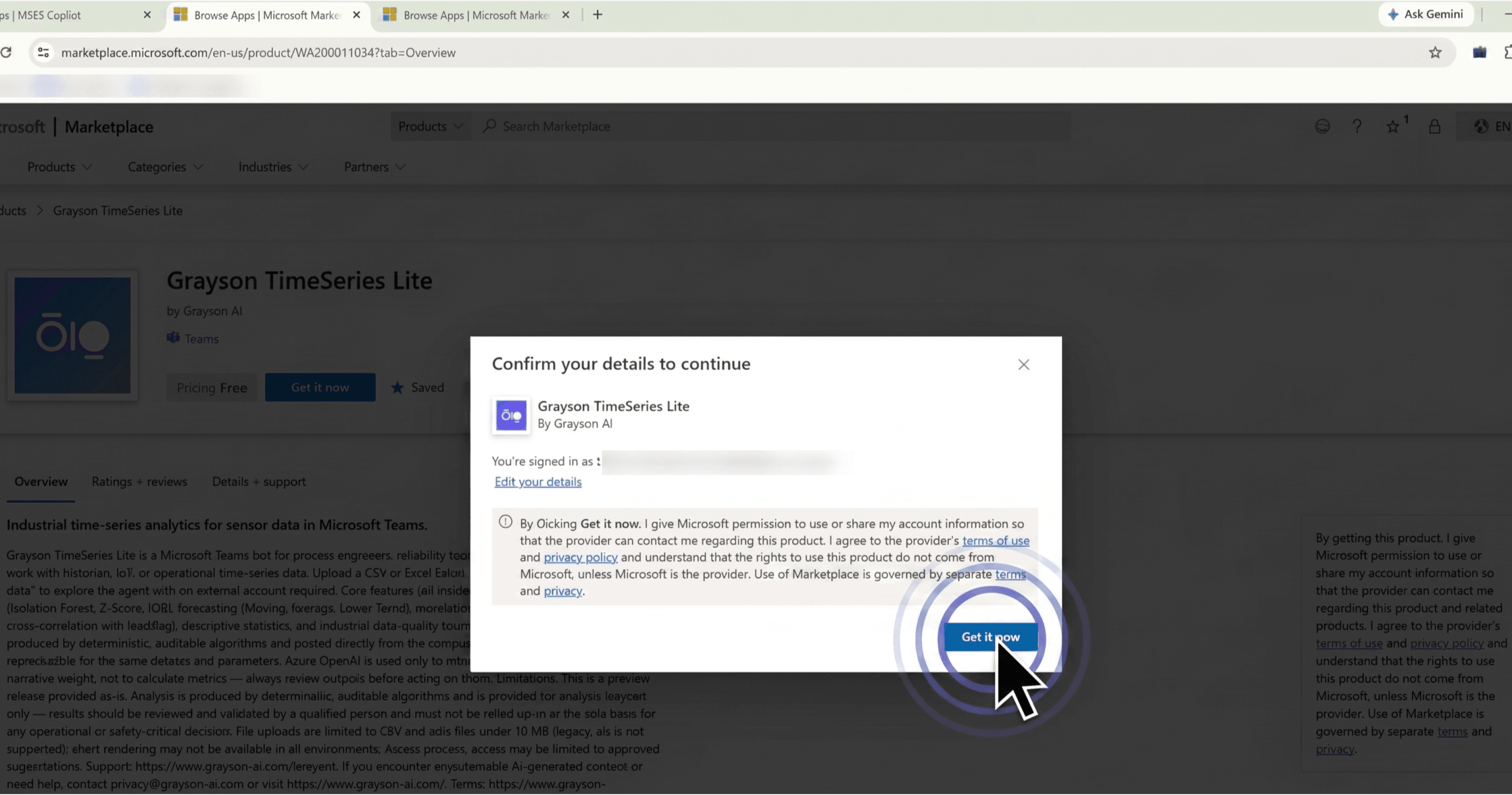
On the Grayson TimeSeries listing, click Get it now.
- 3
Confirm your account details, then click Get it now again. If you are not signed in with a school or work Office 365 account, you will be asked to sign in first—you need an account to add the agent to.
- 4
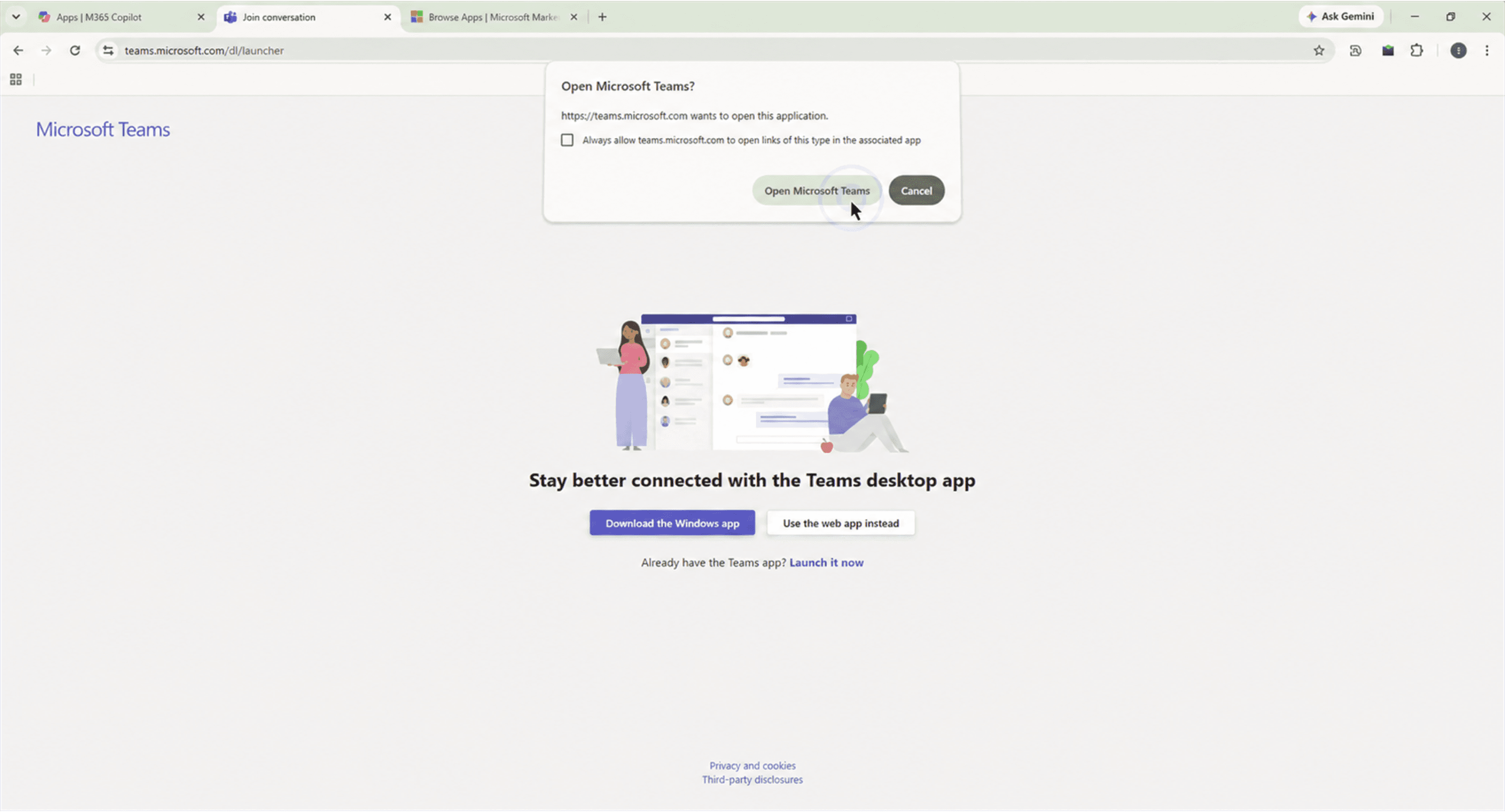
When the browser asks, click Open Microsoft Teams. If you do not have the Microsoft Teams Desktop App installed, you can choose to launch the web app instead.
- 5
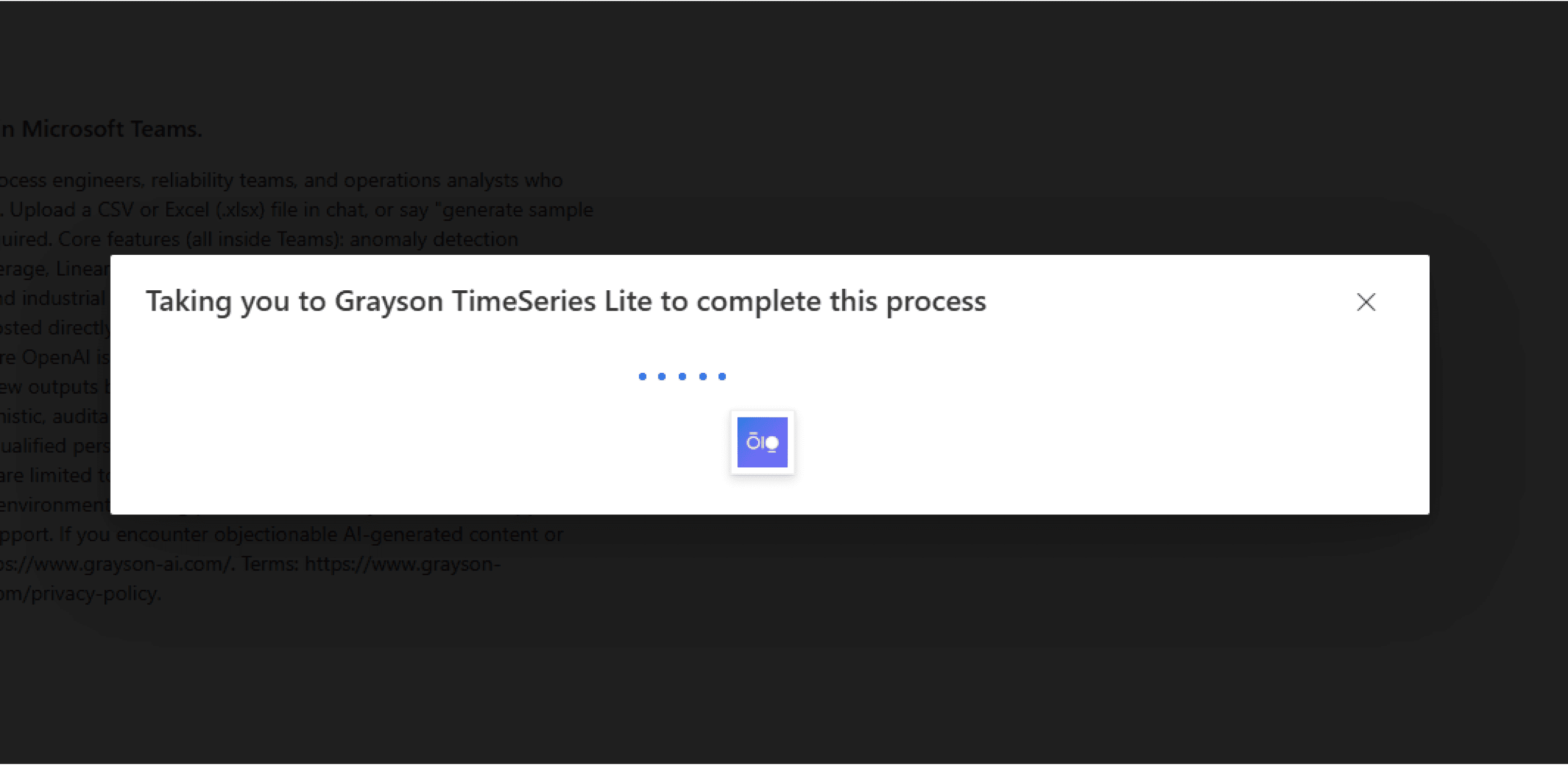
You'll see a brief redirect—Taking you to Grayson TimeSeries Lite to complete this process. Wait for Teams to finish loading.
- 6
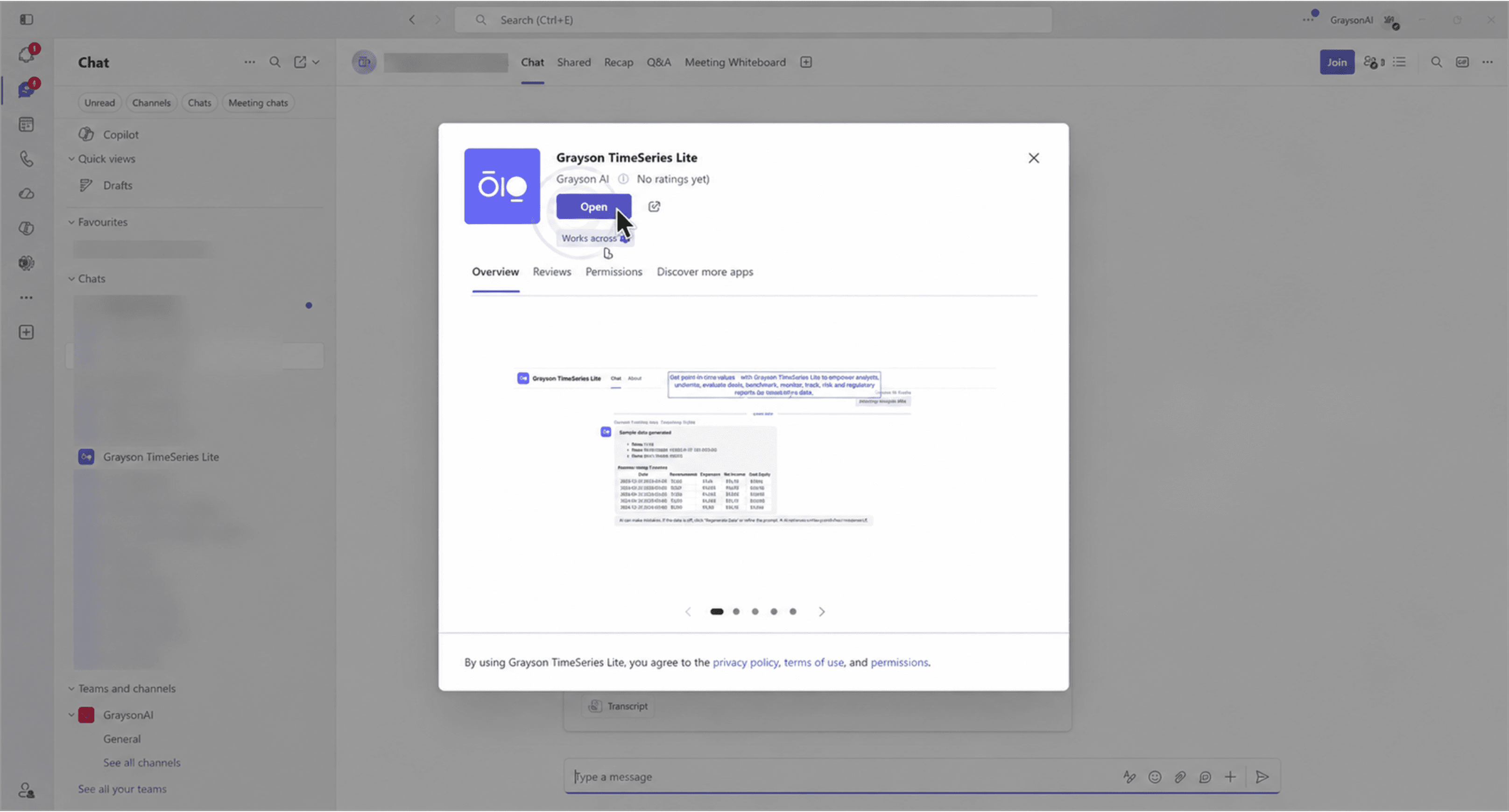
In Teams, click Open or Add.
- 7
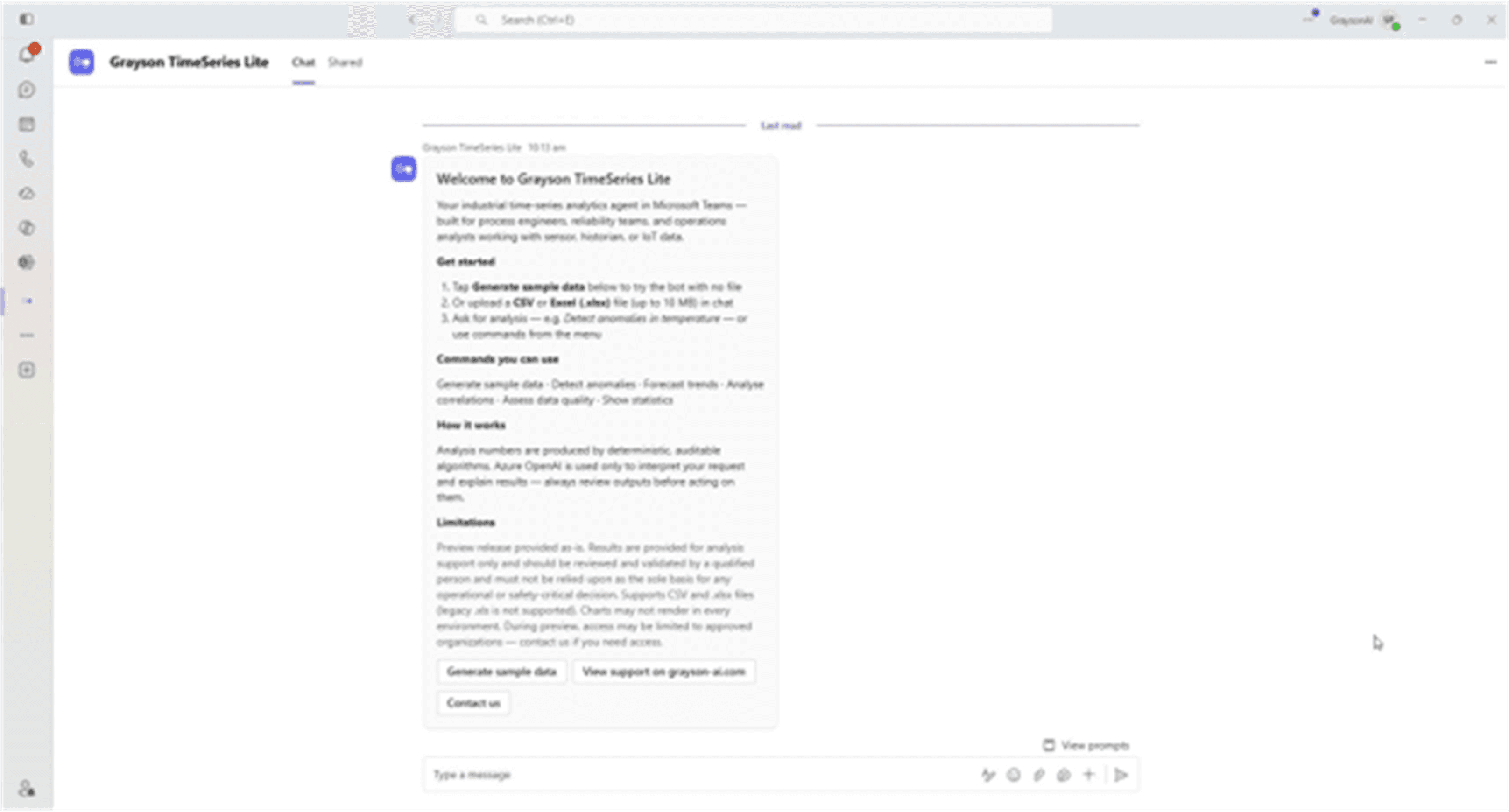
Grayson TimeSeries Lite opens in your chat—you're ready to go.
- 1
- 2
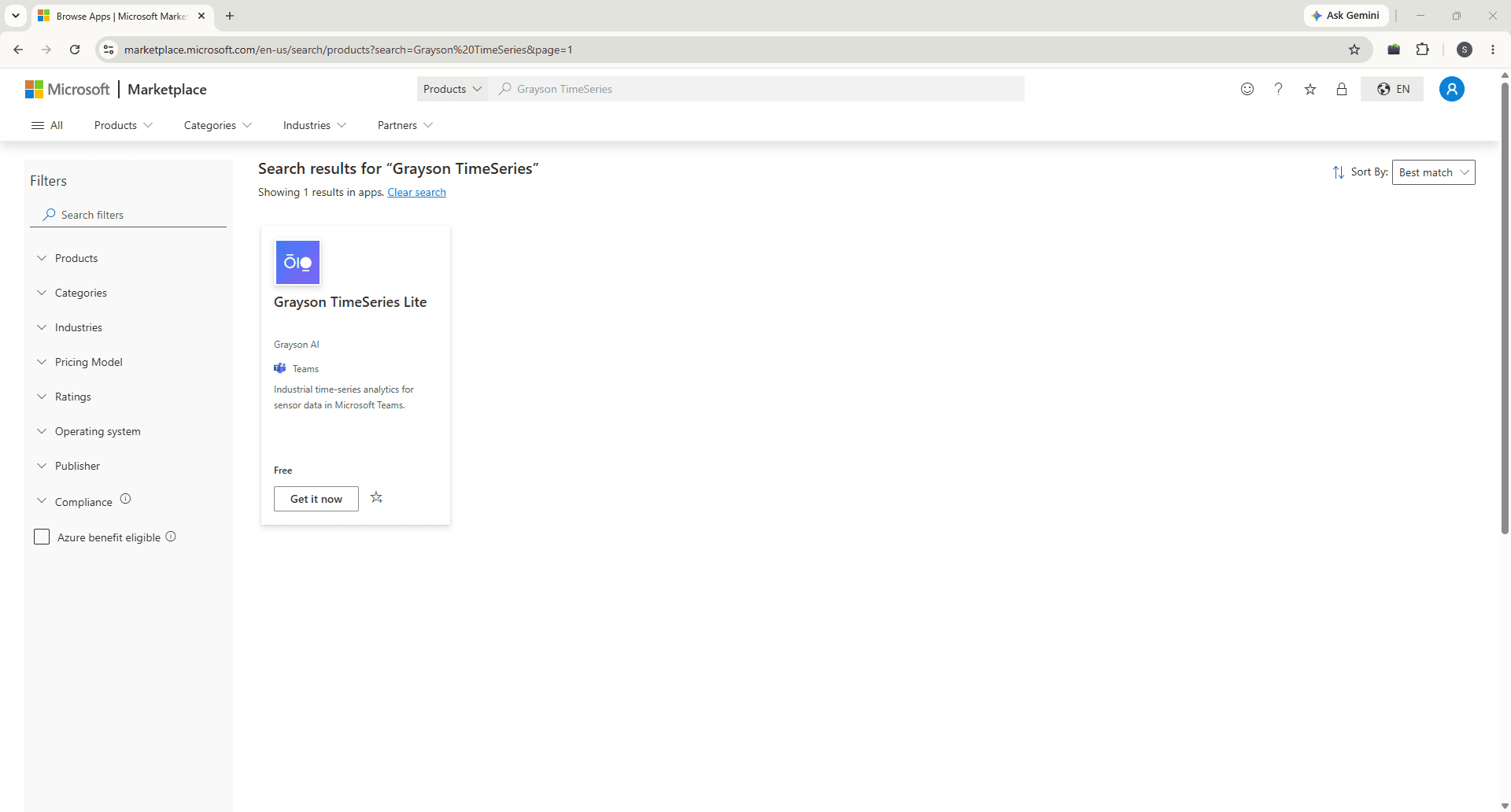
Open the Grayson TimeSeries listing. Pricing shows Free.
- 3
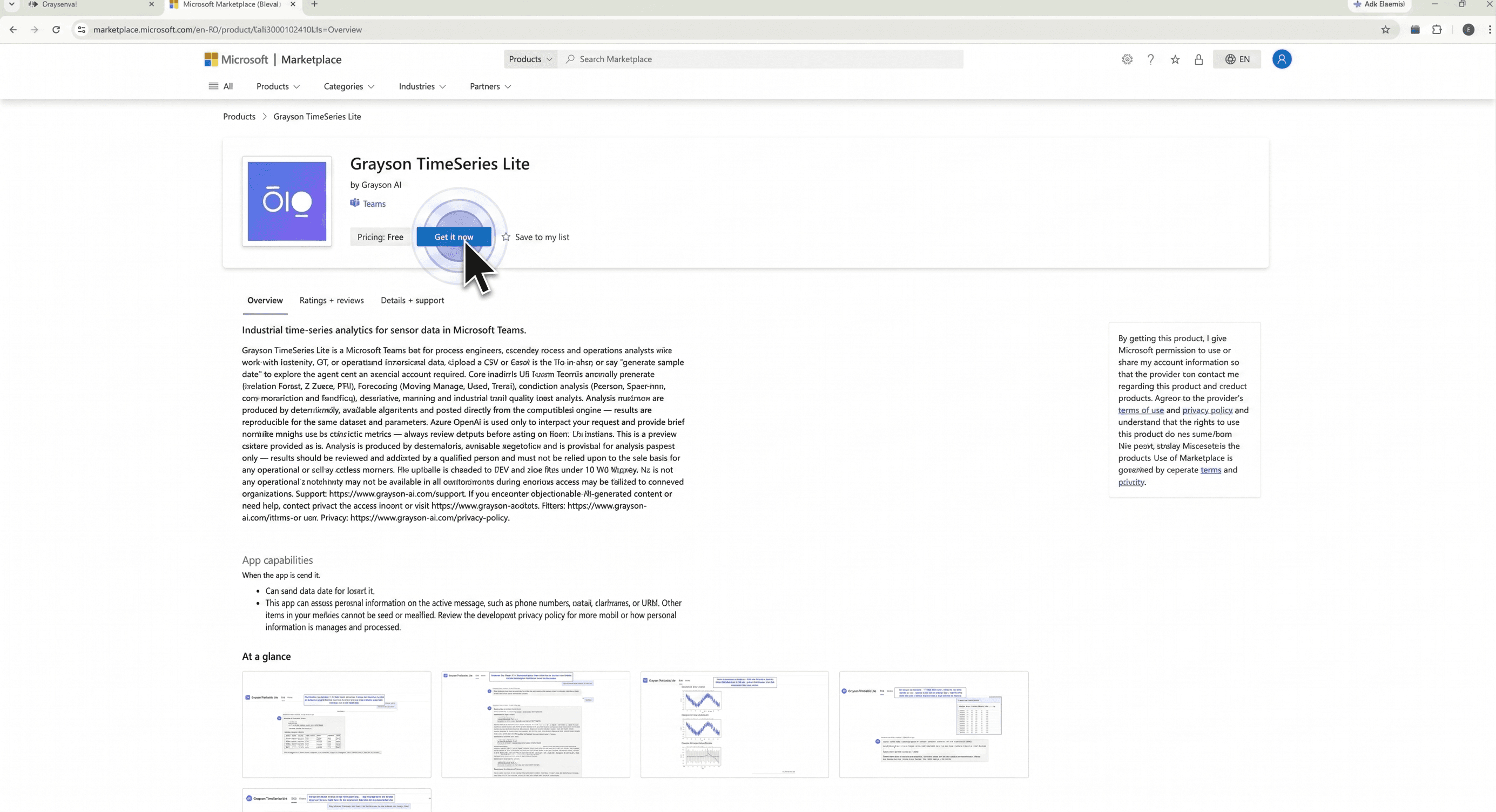
On the Grayson TimeSeries listing, click Get it now.
- 4
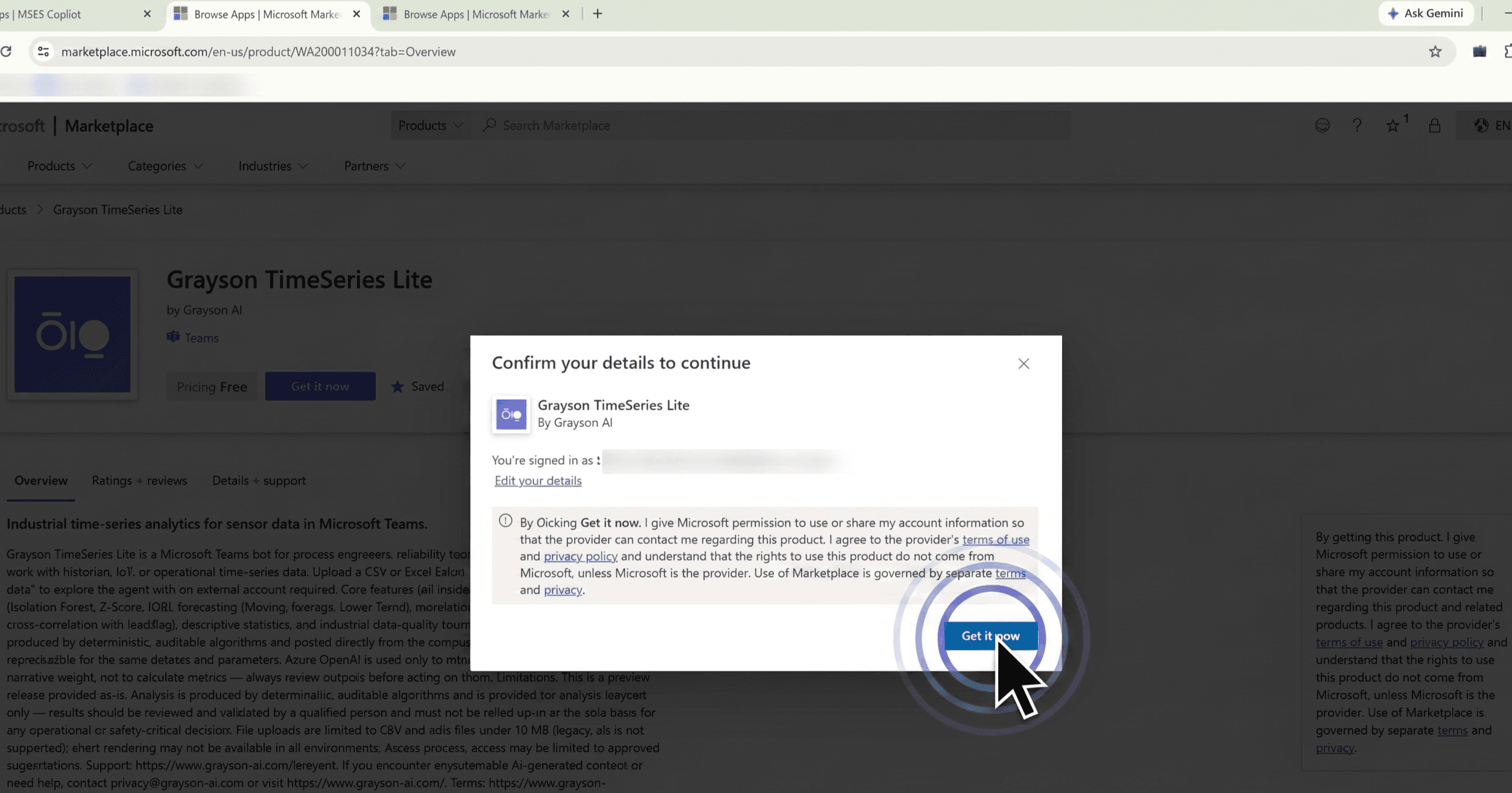
Confirm your account details, then click Get it now again. If you are not signed in with a school or work Office 365 account, you will be asked to sign in first—you need an account to add the agent to.
- 5
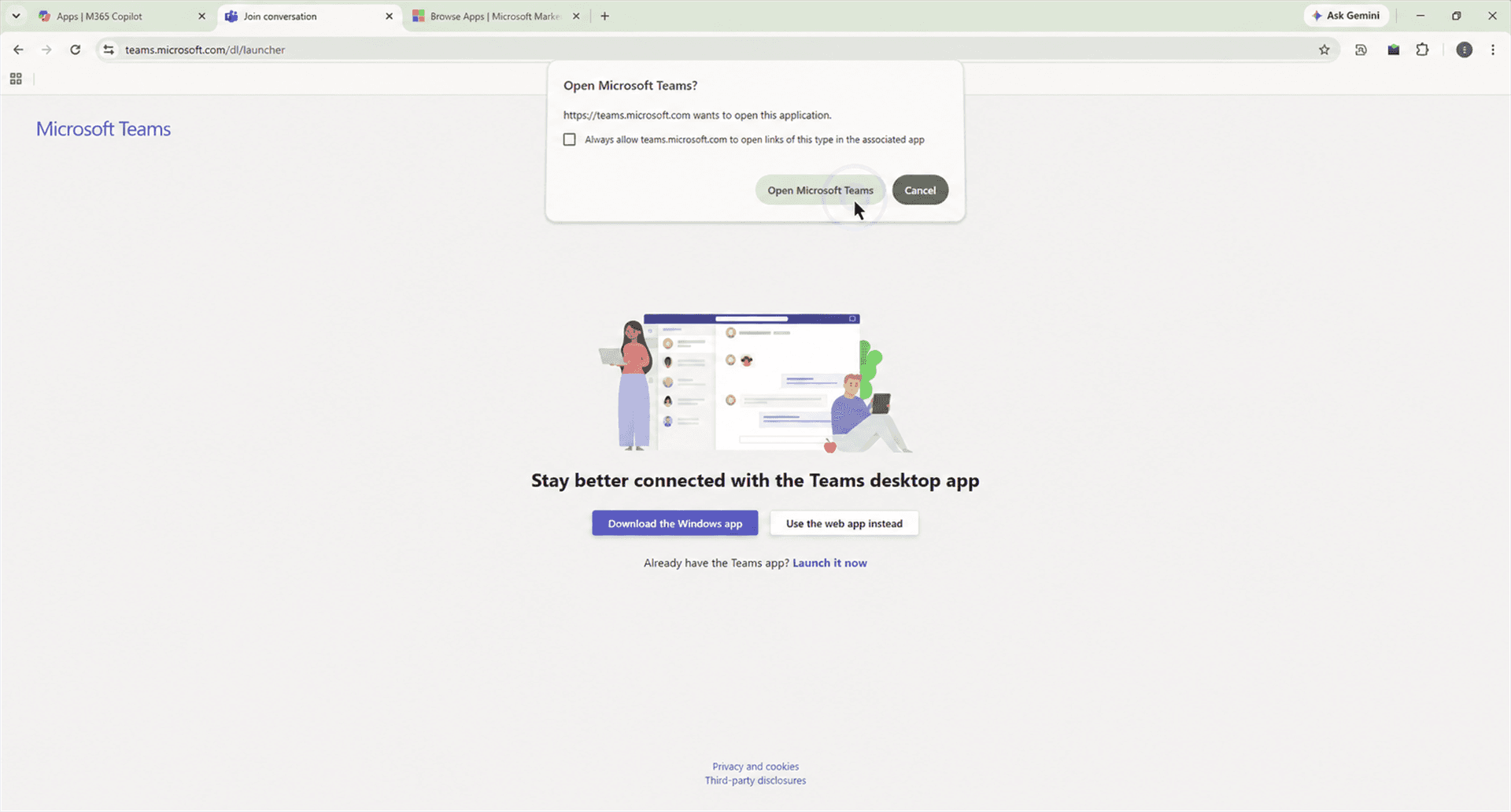
When the browser asks, click Open Microsoft Teams. If you do not have the Microsoft Teams Desktop App installed, you can choose to launch the web app instead.
- 6
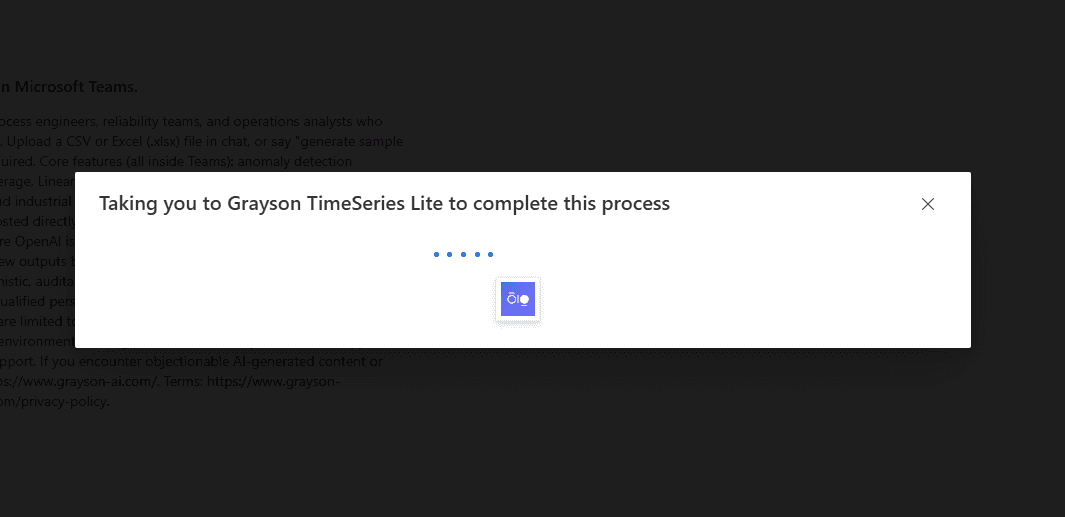
You'll see a brief redirect—Taking you to Grayson TimeSeries Lite to complete this process. Wait for Teams to finish loading.
- 7
In Teams, click Open or Add.
- 8
Grayson TimeSeries Lite opens in your chat—you're ready to go.